
SIGNL4 Integration with CrowdStrike
CrowdStrike Falcon helps security teams detect, investigate, and respond to threats across endpoints and other environments. Using Falcon Fusion SOAR workflows, you can forward selected security incidents to SIGNL4 through an HTTPS request.
SIGNL4 adds mobile app push notifications, SMS, voice calls, automated escalation, on-call scheduling, and mobile acknowledgement. This helps ensure that urgent detections reach the responsible security analyst, even outside office hours.
Typical use cases include:
- Escalation of high-severity endpoint detections to the on-call SOC analyst
- Mobile notifications for suspected ransomware or malicious execution
- Escalation of critical Falcon incidents outside business hours
- Notification of endpoint containment or response events
- Alerting the incident response team when immediate human action is required
Prerequisites
- A SIGNL4 account and a SIGNL4 team or integration secret
- Access to a CrowdStrike Falcon environment with Falcon Fusion SOAR workflows and the relevant Cloud HTTP Request capability
- Permissions to create and test Fusion SOAR workflows
- A Falcon event type or workflow trigger suitable for your security-alert use case
Note: CrowdStrike capabilities and available actions depend on your Falcon subscription and permissions. This guide describes a configuration pattern using documented HTTP Actions, not a prebuilt or officially certified CrowdStrike–SIGNL4 connector. The integration has not been verified in a live CrowdStrike tenant.
How to Integrate
CrowdStrike Falcon Fusion SOAR can trigger workflows when security events occur. A Cloud HTTP Request action can call SIGNL4’s public webhook endpoint directly.
CrowdStrike Falcon detection / incident
                 |
                 v
        Falcon Fusion SOAR
                 |
                 v
       Cloud HTTP Request
                 |
                 v
            SIGNL4
                 |
          +------+------+------+
          |      |      |      |
         Push   SMS   Voice  Escalation
1. Get Your SIGNL4 Webhook URL
In SIGNL4, select the target team and locate its team or integration secret. The webhook URL follows this format:
https://connect.signl4.com/webhook/YOUR_SIGNL4_SECRET
Replace YOUR_SIGNL4_SECRET with your actual secret. Treat the URL as a credential and do not expose it in public logs or shared screenshots.
For more information, see the SIGNL4 Webhook integration.
2. Create a Falcon Fusion SOAR Workflow
- Sign in to your CrowdStrike Falcon console.
- Navigate to Fusion SOAR > Workflows (the menu may vary by console version and entitlement).
- Create a workflow triggered by the Falcon detection or incident event you want to notify on.
- Add a condition to limit notifications to relevant events, such as high or critical severity. This helps avoid unnecessary mobile alerts.
- Add a Cloud HTTP Request action to the workflow.
Refer to the CrowdStrike Fusion SOAR documentation for workflow creation and available triggers.
3. Configure the HTTP Request
Configure the Cloud HTTP Request action to send the event to SIGNL4:
Method: POST
URL: https://connect.signl4.com/webhook/YOUR_SIGNL4_SECRET
Header: Content-Type: application/json
Body: JSON
No separate authorization header is needed by the SIGNL4 webhook because the team or integration secret is included in the URL. If the Cloud HTTP Request configuration requires an authentication selection, choose the option that allows a request without an additional authorization header, if available. Do not invent an API key for SIGNL4.
Start by testing with a static JSON body:
{
  "Title": "CrowdStrike: Critical endpoint detection",
  "Message": "A critical security detection requires investigation.",
  "Severity": "Critical",
  "Hostname": "workstation-42",
  "Detection ID": "example-detection-123",
  "Source": "CrowdStrike Falcon",
  "X-S4-ExternalID": "example-detection-123",
  "X-S4-Status": "new"
}
After the static request succeeds, replace the example values with dynamic Falcon event variables available in your workflow builder. The exact field names and expression syntax depend on the selected Falcon trigger and workflow context. Use the Falcon field picker rather than copying placeholder property names.
For example, map:
- Title to an incident title or detection summary
- Message to concise context and the immediate action required
- Severity to the Falcon severity or priority
- Hostname to the affected endpoint, where available
- Detection ID to the event’s unique identifier
- X-S4-ExternalID to the same stable, unique detection or incident identifier
Avoid including secrets, credentials, unnecessary personal data, or sensitive forensic content in mobile notifications.
4. Test the Integration
- Use the HTTP Action’s Test function, if available, to send the static JSON example.
- Confirm that the request succeeds and a new alert arrives in the SIGNL4 app.
- Check that its title, message, and custom fields are displayed correctly.
- Replace the static example with dynamic workflow values and test using a permitted test event.
- Enable the workflow only after checking alert routing, escalation, and severity filtering.
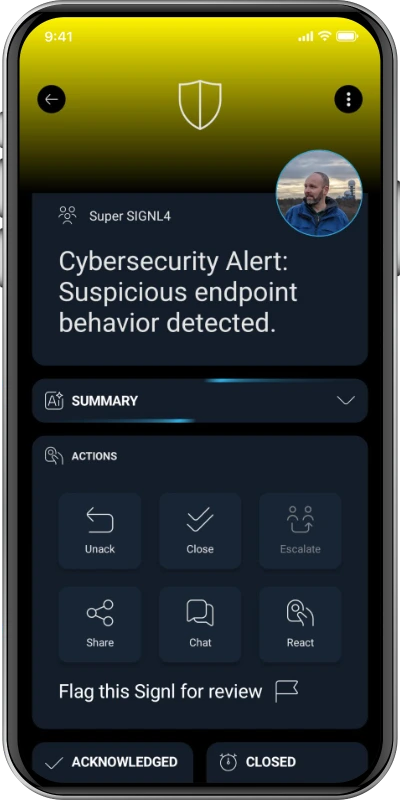
Illustrative SIGNL4 mobile alert screenshot; not an actual CrowdStrike incident.
5. Optional: Automatically Resolve Alerts
SIGNL4 supports updating an existing alert through the webhook. To close a SIGNL4 alert when the corresponding Falcon incident is resolved, create an additional Fusion SOAR workflow if a suitable resolution/status-change trigger is available in your Falcon environment.
Send a second HTTP POST with the same external ID used when creating the alert:
{
  "X-S4-ExternalID": "example-detection-123",
  "X-S4-Status": "resolved"
}
You can also use "X-S4-Status": "acknowledged" to acknowledge an existing alert where appropriate. Status updates only correlate correctly if the original alert was created with the matching X-S4-ExternalID.
Alert resolution in SIGNL4 does not by itself resolve the CrowdStrike incident. Sending acknowledgement or closure from SIGNL4 back to Falcon requires a separately configured reverse integration, such as SIGNL4 outbound webhooks and the CrowdStrike API.
Example
An endpoint triggers a critical detection in CrowdStrike Falcon. Fusion SOAR filters the event and sends the incident details to SIGNL4. SIGNL4 then notifies the currently on-call security analyst via app push, SMS, or voice call, and can escalate until somebody responds.
This pattern is particularly useful for lean SOC teams, after-hours response, and critical incidents that should not wait in a dashboard or email inbox.
Troubleshooting
- No alert received: Confirm the webhook URL, team secret, outbound HTTP access, and response status of the HTTP Action.
- Workflow did not execute: Inspect the workflow trigger, severity filter, activation state, and Falcon execution logs.
- Incorrect or blank alert fields: Recheck the dynamic values supplied by the Falcon trigger and the generated JSON body.
- Duplicate alerts: Review the workflow trigger conditions and repeated-event behavior. Use a stable external ID for correlation.
- Resolution does not work: Confirm that the original and subsequent requests use the exact same
X-S4-ExternalIDvalue. - Request configuration unavailable: Check Falcon Fusion SOAR entitlement and whether Cloud HTTP Request actions are enabled for your tenant.
References
- CrowdStrike: Build API Integrations with Falcon Fusion SOAR HTTP Actions
- CrowdStrike Developer Center: Fusion SOAR
- CrowdStrike Developer Center: API Integrations
- SIGNL4 Webhook Integration
That’s it. Critical CrowdStrike Falcon events can now reach the right on-call person through reliable mobile alerting and automated escalation.